Add an element to the Audience
The Add element to audience shortcut creates an HTML element condition from the element currently selected in the Visual Editor. Use it when the presence of an element should determine whether a visitor qualifies for the experiment.
For example, if product pages do not have a reliable URL pattern but all contain an add-to-cart element, you can use that element to target those pages.
Add the condition
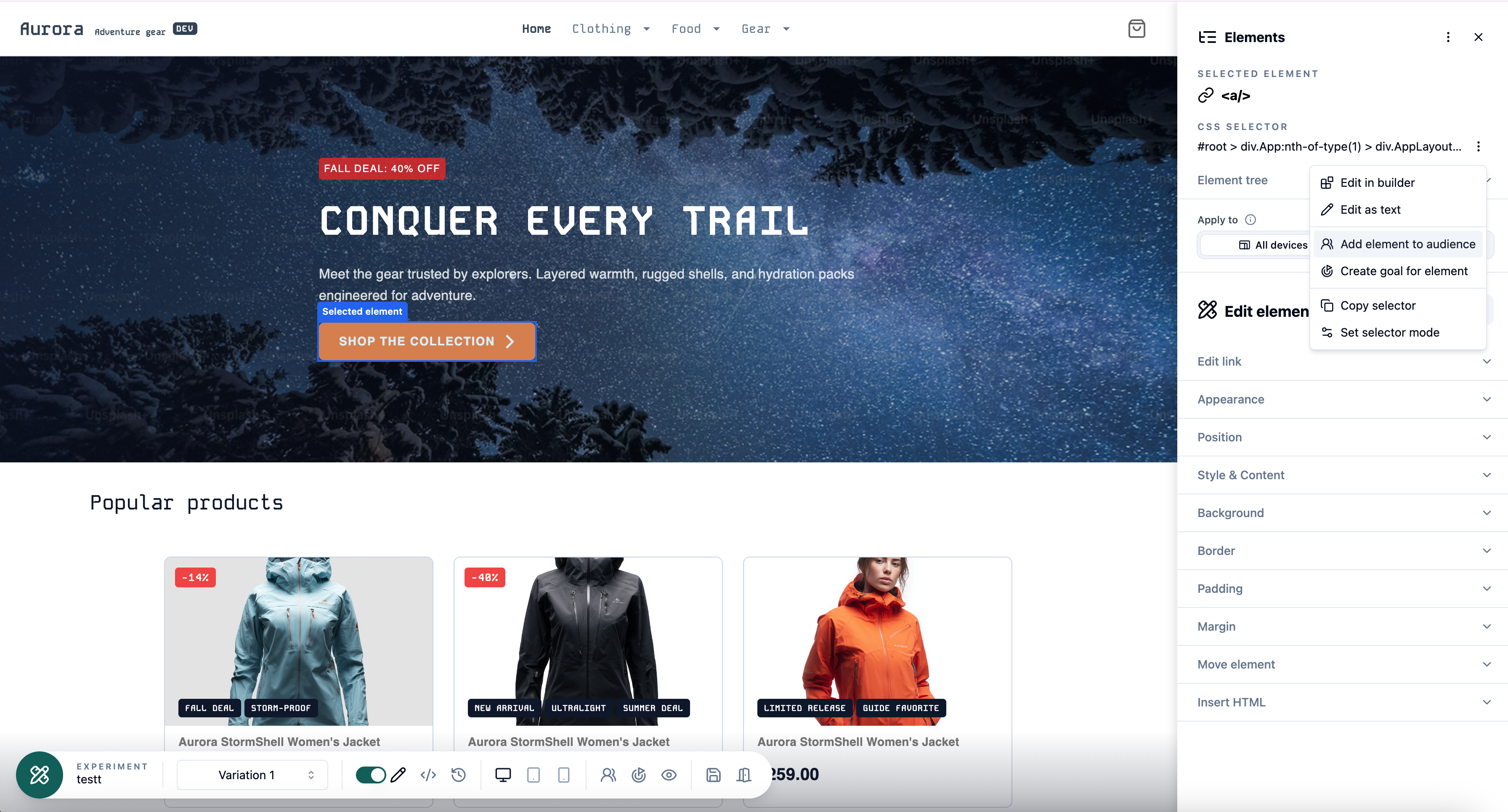
- Open the experiment in the Visual Editor and select the element.
- Open the three-dot menu beside CSS selector.
- Select Add element to audience.
- Review the prefilled HTML element condition and the group to which it belongs.
- Optionally add text matching or other Audience conditions.
- Save the Audience.
The condition uses the selected element's current CSS selector. By default, it matches when an element with that selector exists, regardless of its text.
Add element to audience is available only when one element is selected. For a selector that matches several elements, open the Audience builder and add the HTML element condition manually.
New and existing Audiences
If the experiment does not have an Audience, Lyftio opens a new Audience draft with the HTML element condition already added.
If an Audience already exists, Lyftio keeps its name and existing conditions and appends the new condition to its last condition group. Review that group's logic before saving:
- In an All group, the new element condition and every other rule in the group must match.
- In an Any group, the element condition or another rule in the group may match.
- If the Audience contains multiple groups, also review whether All groups or Any group is required.
Learn more about Audience condition groups.
Refine the element match
Before saving, verify that the selector identifies the intended element on every relevant page. You can also use Text match type to distinguish elements that share a selector:
- Any text checks only whether the selected element exists.
- No text requires the element to contain no text.
- Exact match, Contains, and Regex match compare the element's text with the value you provide.
See HTML element Audience conditions for full text-matching behavior.
After saving, open a Preview and test pages that should both match and fail the Audience. The Audience evaluation summary shows the result of the new condition and its group.