Move an element
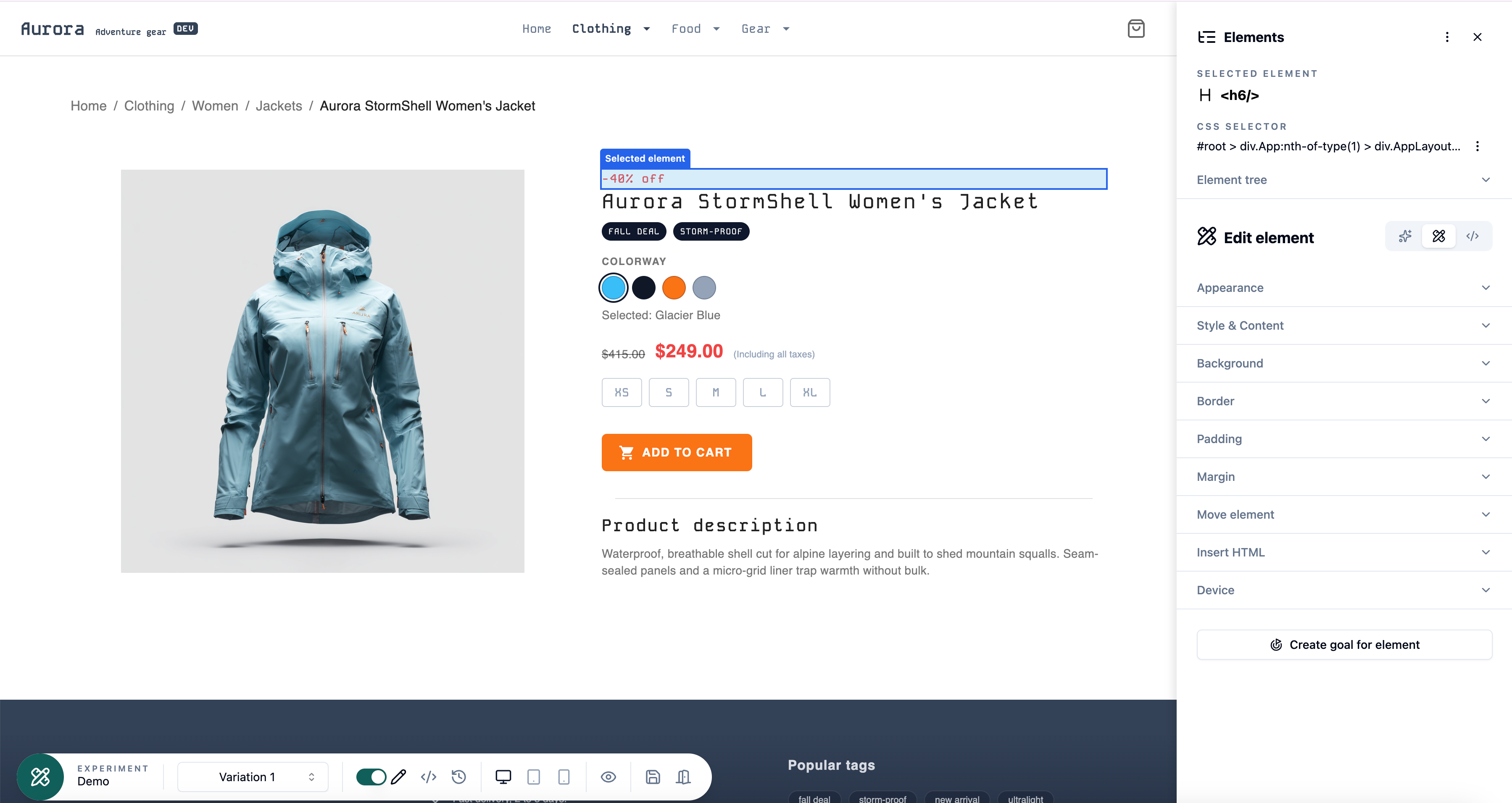 To move an element simply hover over the element you want to move and then left click to open up the Edit panel.
If you can’t select the exact element you want to move, click a nearby element and then use the Element tree to navigate to the correct one. Hovering over items in the tree will highlight the corresponding element on the page.
It’s important to move the entire component to avoid breaking any associated functionality. Whenever possible, we strongly recommend moving the outermost “container” element rather than individual nested elements.
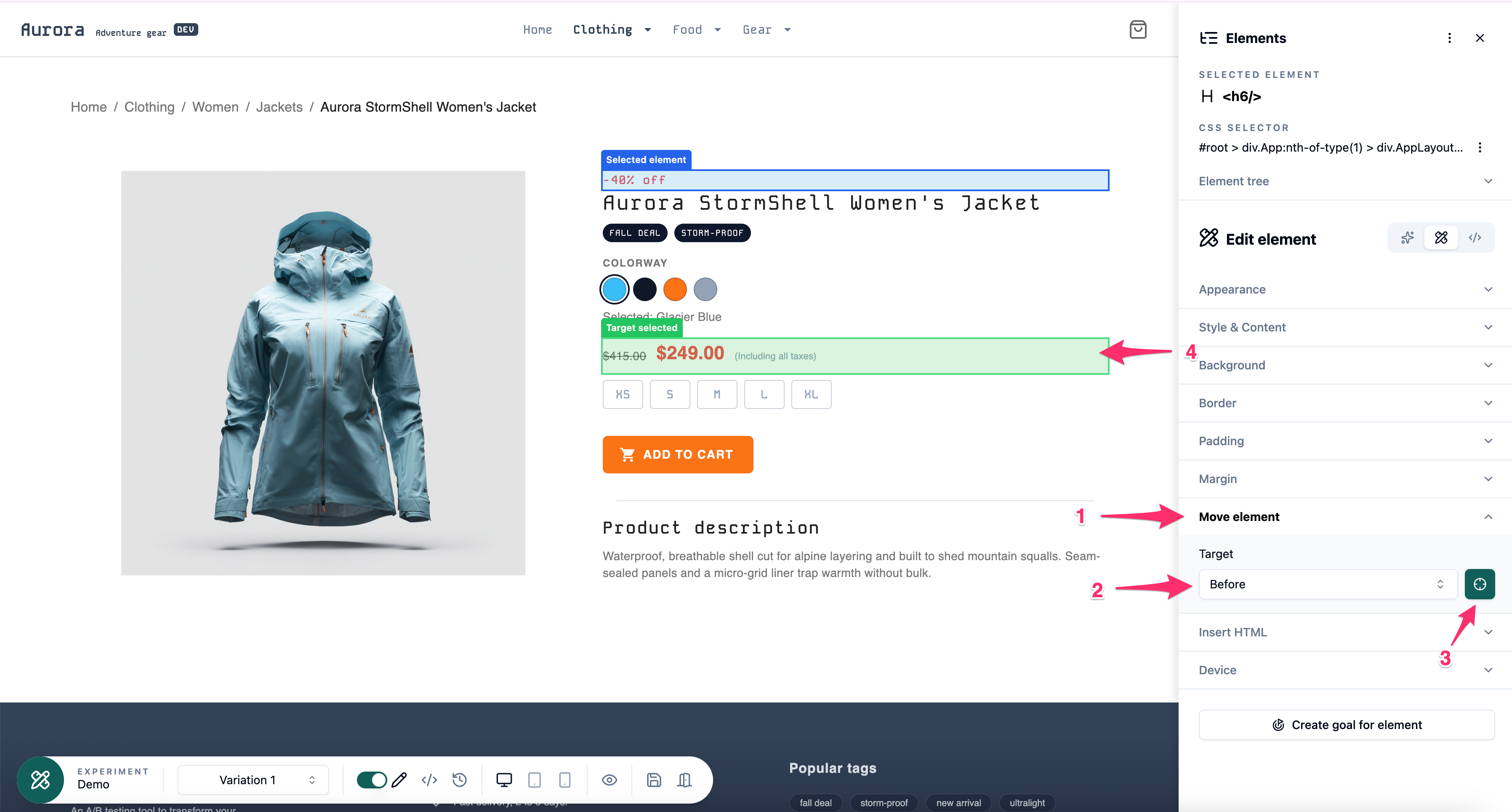 Click Move element to reveal the options, then choose the desired position relative to the target element from the dropdown. Next, click the target icon and select the element you want to position your selected element before, after, or inside (first or last).
You can navigate to the correct target element by using the Element Tree below the position dropdown and selecting the desired element.
Click Apply and the element will be moved to your selected location.
If you are unhappy with your move you can click on the Reset move button and start over.