Create a goal for an element
The Create goal for element shortcut creates a click goal from the element or elements currently selected in the Visual Editor. Use it to track actions such as clicks on an add-to-cart button, signup link, navigation item, or other interactive element.
Create the goal
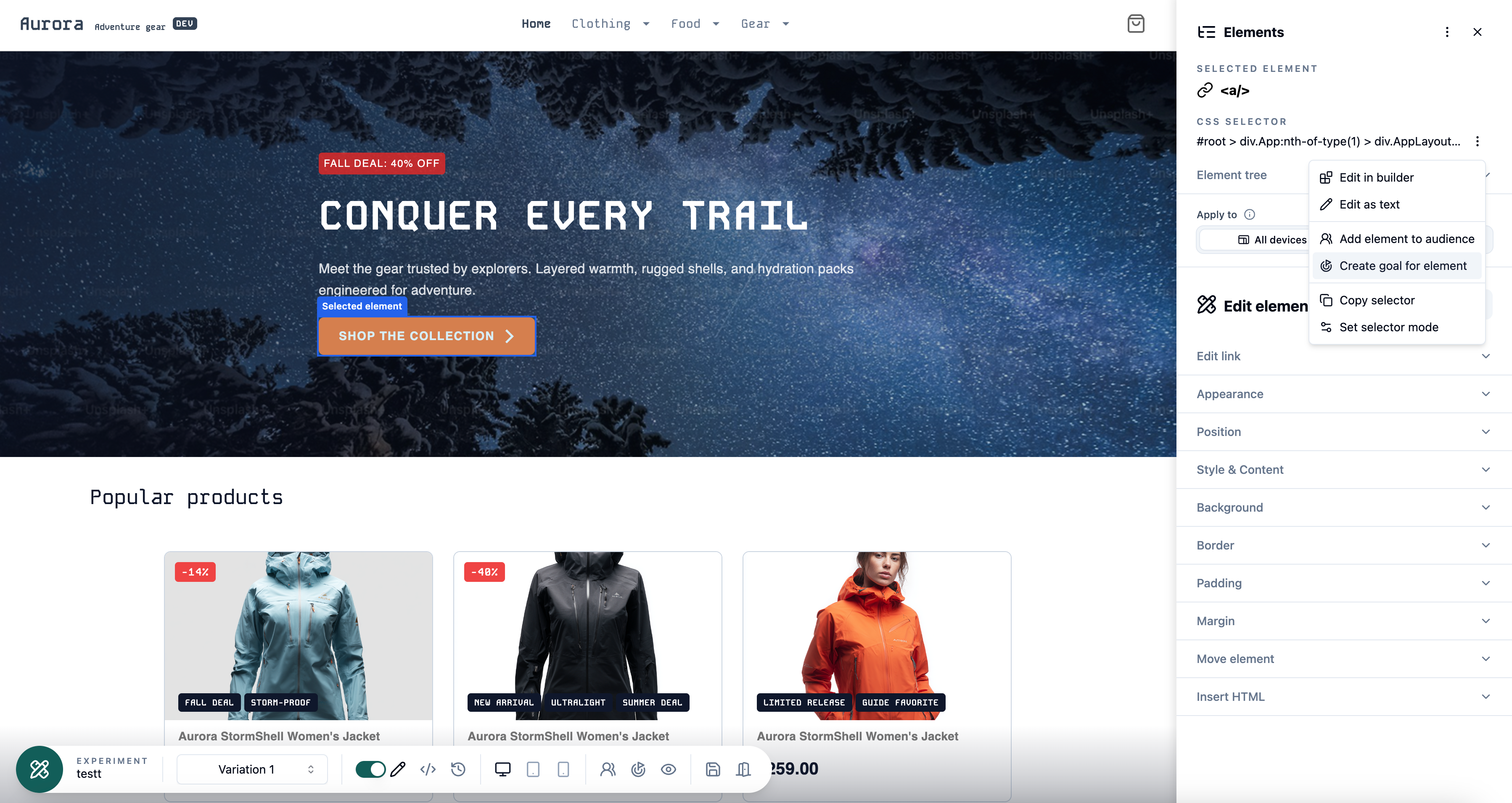
- Open the experiment in the Visual Editor and select the element you want to track.
- Open the three-dot menu beside CSS selector.
- Select Create goal for element.
- Review the prefilled goal name and Click condition.
- Optionally change the name, make it the primary goal, refine the text match, or add other conditions.
- Save the goal.
The Click condition uses the current CSS selector and is initially set to match a visitor's first click on any text within the selected element.
Single elements, multiple elements, and repeating groups
You can create a click goal from either a single selection or a multi-selection:
- For one element, the goal uses that element's selector.
- For elements selected with Shift-click, the goal uses the combined selector for the explicitly selected elements.
- If you accepted Use all matches for a repeating group, the goal uses the shared selector and can be triggered by any current or future element that matches it.
Always check the displayed selector and highlighted elements before saving. A broad selector may track more clicks than intended.
Learn more about selecting multiple elements and repeating groups.
Refine the click match
Use Text match type when the selector matches several elements but only some of their clicks should count:
- Any text counts a click regardless of the element's text.
- No text counts clicks only when the selected element contains no text.
- Exact match, Contains, and Regex match compare the element's text at the time of the click with the value you provide.
See Click goal conditions for full text-matching behavior.
You can also add other rules or condition groups. For example, combine the Click condition with a URL condition when the same selector appears on several page types but should count only on product pages.
Editing an existing goal
If a goal already contains a Click condition with exactly the same selector, the menu action changes to Edit goal. Opening it lets you update that goal instead of creating a duplicate.
Goals can be recorded only after the visitor has qualified for the experiment's Audience. Test the action in Preview and confirm that the Goal triggered notification appears. See Verify goals for details.