Start A/B testing fast with Lyftio — no-code Visual Editor for everyone

· 2 min read

Docusaurus Plushie

Launching your first A/B test with Lyftio takes minutes—not weeks. Our no‑code Visual Editor lets non‑developers create, preview, and publish variations safely, while engineers can opt into server‑side or hybrid tests when needed.

Why A/B test

A/B testing lets you prove that a change truly drives results before you ship it to everyone. By splitting traffic between a control and a variation, you isolate the effect of your idea from seasonality, campaigns, or random noise, so you’re measuring causality—not coincidence.

That protection matters because even “obvious” improvements can lower conversion or revenue once they meet real users. Testing also tells you how big the lift is, how risky it is, and where it works best (for example, on mobile or for new visitors), so rollouts are confident and targeted. In short, A/B testing replaces guesswork with evidence, helping you move faster while safeguarding the metrics that matter.

Easy with Lyftio

  • No‑code Visual Editor — click‑to‑edit text, images, buttons, colors, spacing, and layout.

  • Instant preview & share links — QA a variation on real URLs before it’s live.

  • Cookieless‑experiments — reliable results across browsers.

  • Templates for common wins — headlines, hero sections, add‑to‑cart, banners, sticky CTAs, pricing cards.

  • Safe publishing — role‑based approvals, scheduling, and one‑click rollback.

  • Guardrails — performance and revenue metrics baked in.

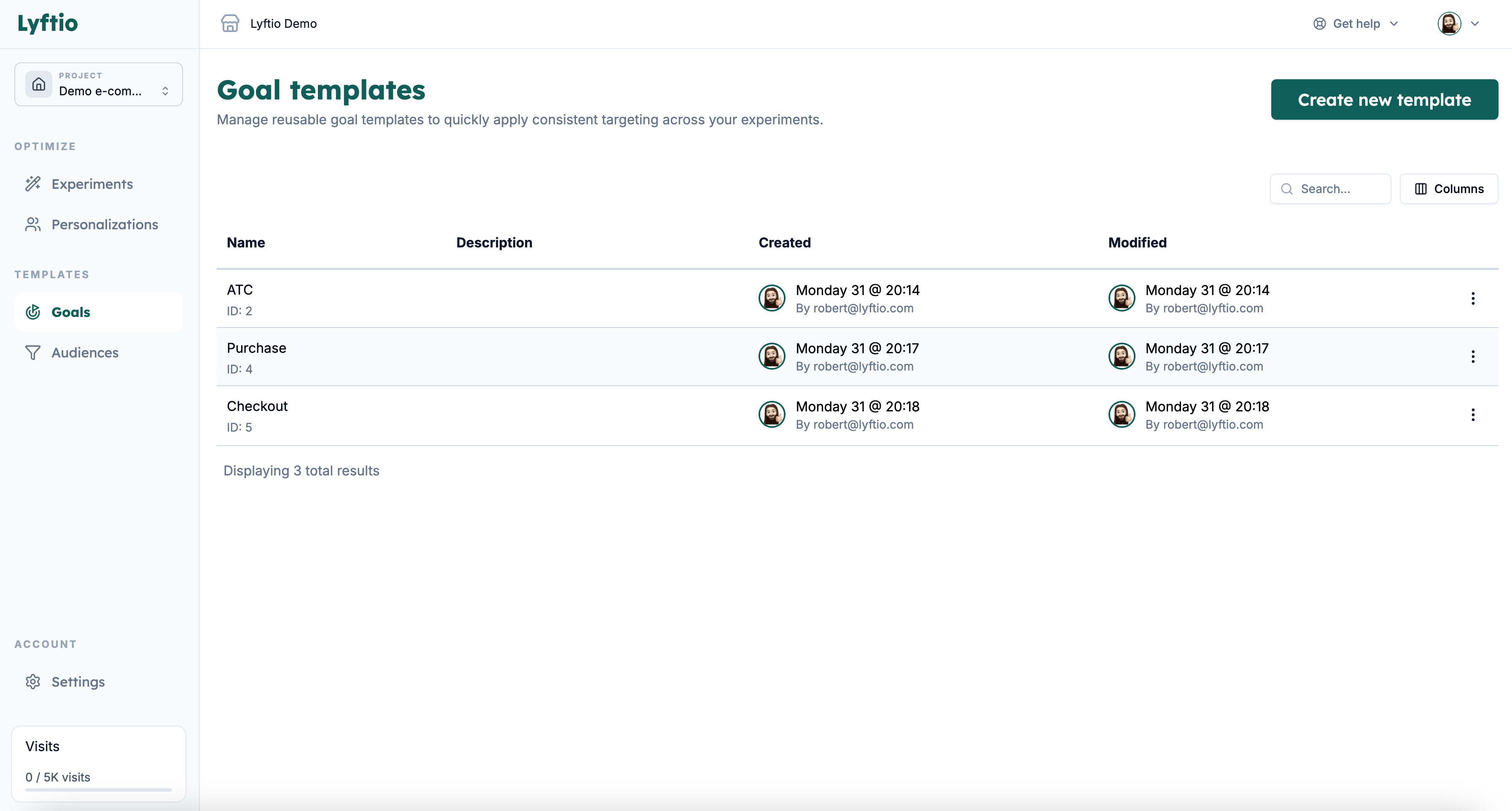
Docusaurus Plushie Graphical Editor

Fastest setup (5 steps)

  1. Add Lyftio to your site
    Insert the lightweight snippet.

  2. Create an experiment
    Give it a clear name (e.g., “PDP: bigger price + free‑shipping badge”).

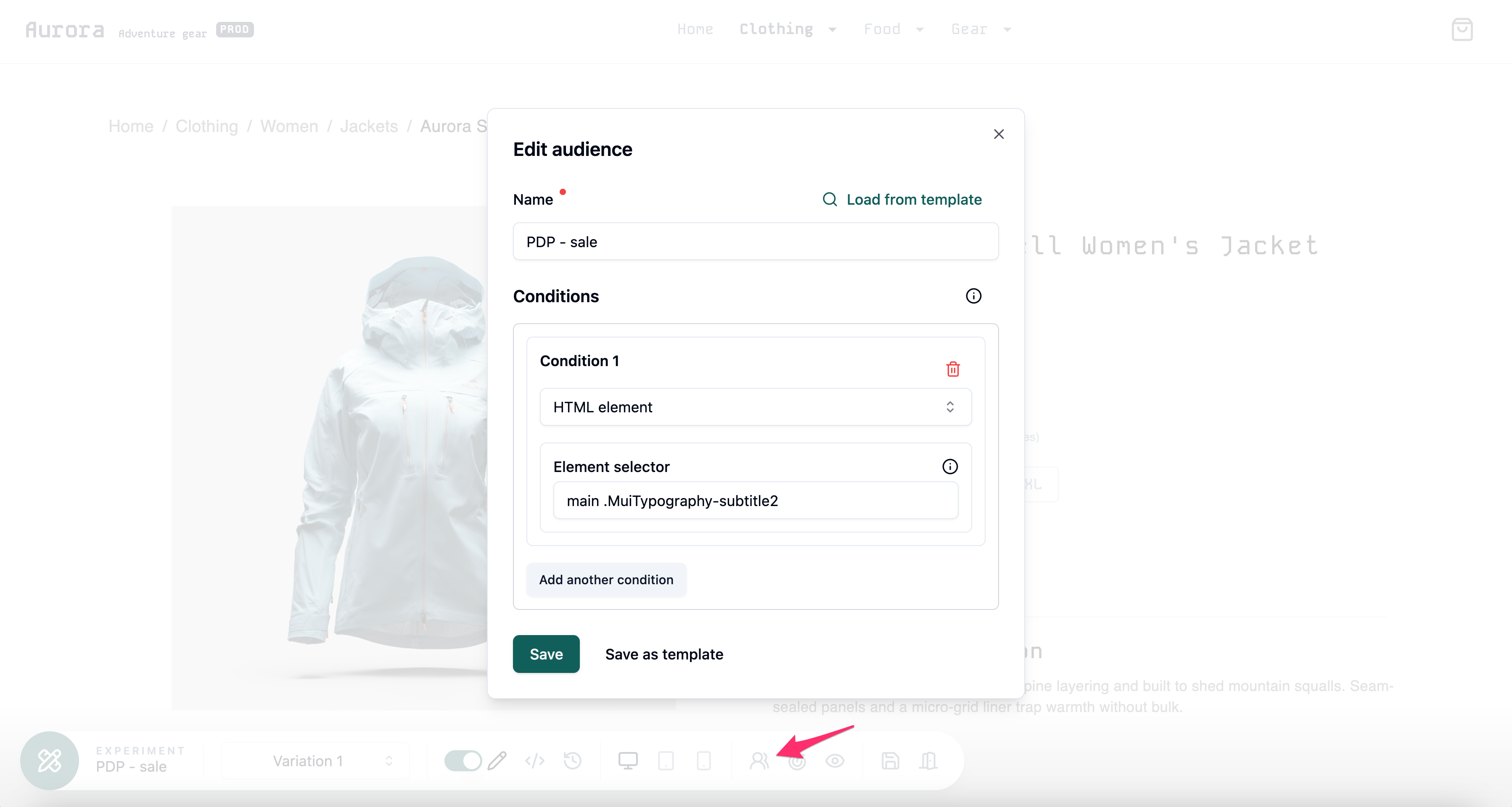
  3. Target your visitors
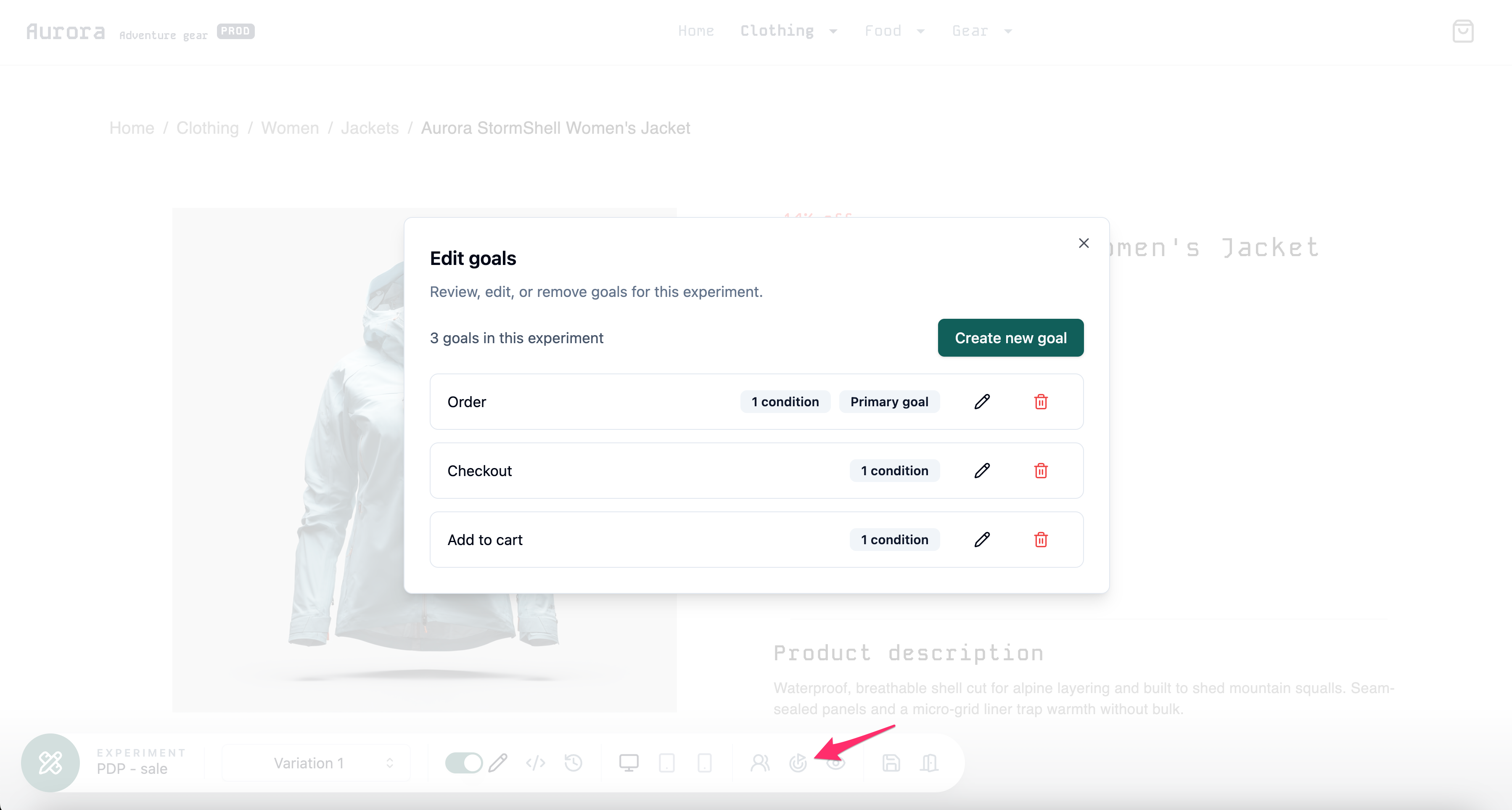
    Decide where the test should run and for what type of visitor (e.g., mobile visitors or a campaign segment). Set the primary goal and any secondary metrics.

  4. Create your variations
    Load a page URL and start editing — change copy, swap images, move sections, tweak spacing, etc.

  5. Preview & launch
    Share a preview link for sign‑off, schedule a start time, and go live. Lyftio tracks results immediately.

Revenue A/B Testing — how Lyftio turns experiments into profit

· 2 min read

Docusaurus Plushie

What is Revenue A/B testing?

Revenue A/B testing measures the money impact of a change—not just clicks or sign‑ups. Instead of stopping at conversion rate, you evaluate Average Revenue per Visitor (ARPV) and related profit metrics so you can ship ideas that actually grow sales.

Key revenue metrics

  • Conversion rate (CR): share of visitors who place an order.

  • Average order value (AOV): revenue per order.

  • ARPV: revenue per visitor = CR × AOV.

  • Probability that the change will increase/reduce revenue

Bottom line: Revenue A/B testing asks, “How much money will this change make—or lose—per visitor?”

Why revenue beats vanilla conversion testing

Avoids false wins where a higher CR hides a lower AOV (or vice versa).

Optimizes for profit, not vanity metrics, using margin‑aware goals.

Surfaces trade‑offs (e.g., free shipping boosts CR but cuts margin) so you can tune thresholds.

Lyftio’s approach

  1. Revenue‑native Bayesian engine
    Lyftio models revenue with a hurdle structure: a Bernoulli layer for conversion and a skew‑aware layer (Gamma/Log‑Normal) for order value.

    You get: Probability the variant increases ARPV: P(ARPV_B > ARPV_A) Expected lift with credible intervals Downside risk against your business rule, e.g. P(loss > 1%) < 5%

  2. Decision rules you can explain
    Ship when either condition is met:P(B>A) > 95% OR P(loss > 1%) < 5% This turns uncertainty into a simple Ship / Keep Running / Roll Back decision.

  3. Secure revenue capture
    Revenue data are sent straight to our API from your website, keeping revenue data accurate, secure, and in lockstep with your checkout.

  4. Segments
    Break out results by traffic source, device, geography, and new vs. returning. Identify where a change prints money—and where it doesn’t.

Bayesian vs. Frequentist — Why Lyftio chooses Bayesian for better decisions

· 3 min read

Docusaurus Plushie

Both Bayesian and frequentist approaches can power A/B testing, but they answer different questions. Frequentist methods tell you how surprising the data would be if there were no effect. Bayesian methods tell you the thing you actually want to know: the probability that Variant B is better than A. Lyftio uses a Bayesian engine because it delivers clearer decisions, safer stopping, and revenue‑aware insights without torturing teams with p‑values and arbitrary thresholds.

The question product teams really ask

  • Frequentist: “If A and B were actually the same, what’s the probability I’d see a difference this big or bigger?” → p‑value.

  • Bayesian: “Given the data I observed, what’s the probability B is better than A, and by how much?” → P(B>A) and credible intervals.

Only one of these maps directly to prioritization and rollout decisions.

Practical advantages of Bayesian for A/B testing

  1. Actionable probabilities (P(B>A)). Get a direct probability that the variant wins and by how much (e.g., “There’s a 93% chance B increases conversion by ≥2%”). No p‑value translation needed.
  2. Credible intervals you can explain. A 95% credible interval means “there’s a 95% probability the true lift lies in this range.” That’s intuitive for non‑statisticians.
  3. Honest, flexible stopping. Bayesian sequential monitoring avoids the p‑hacking pitfalls of repeated peeking. You can evaluate as data arrives and stop when your decision criteria are met P(B>A)>95% or Pr(loss>1%)<5%.
  4. Natural treatment of revenue metrics. Revenue is zero‑inflated and skewed. Lyftio’s Bayesian hurdle models (conversion × order value) capture this structure, producing more stable metrics and better risk controls.
  5. Decisioning with business thresholds. Encode risk appetite directly: “Ship only if probability of losing ≥1% revenue is under 2%.” This is far more aligned to P&L than a p<0.05 ritual.
  6. Small‑sample resilience. Bayesian models use prior information (weakly informative by default) to stabilize early results, reducing wild swings and false alarms.

Example (conversion rate)

Suppose Control converts 500/10,000 (5.00%) and Variant converts 540/10,000 (5.40%).

Frequentist: p≈0.11 → “Not significant.” No decision guidance.

Bayesian: P(B>A)≈0.90; 95% credible interval for lift ≈ [−0.1%, +0.9%].

Decision view: If your rule is “Ship when P(B>A)≥95% or when Expected Value > 0 with risk of ≥1% loss < 5%,” you’d likely keep running. Clear, actionable, and honest about uncertainty.