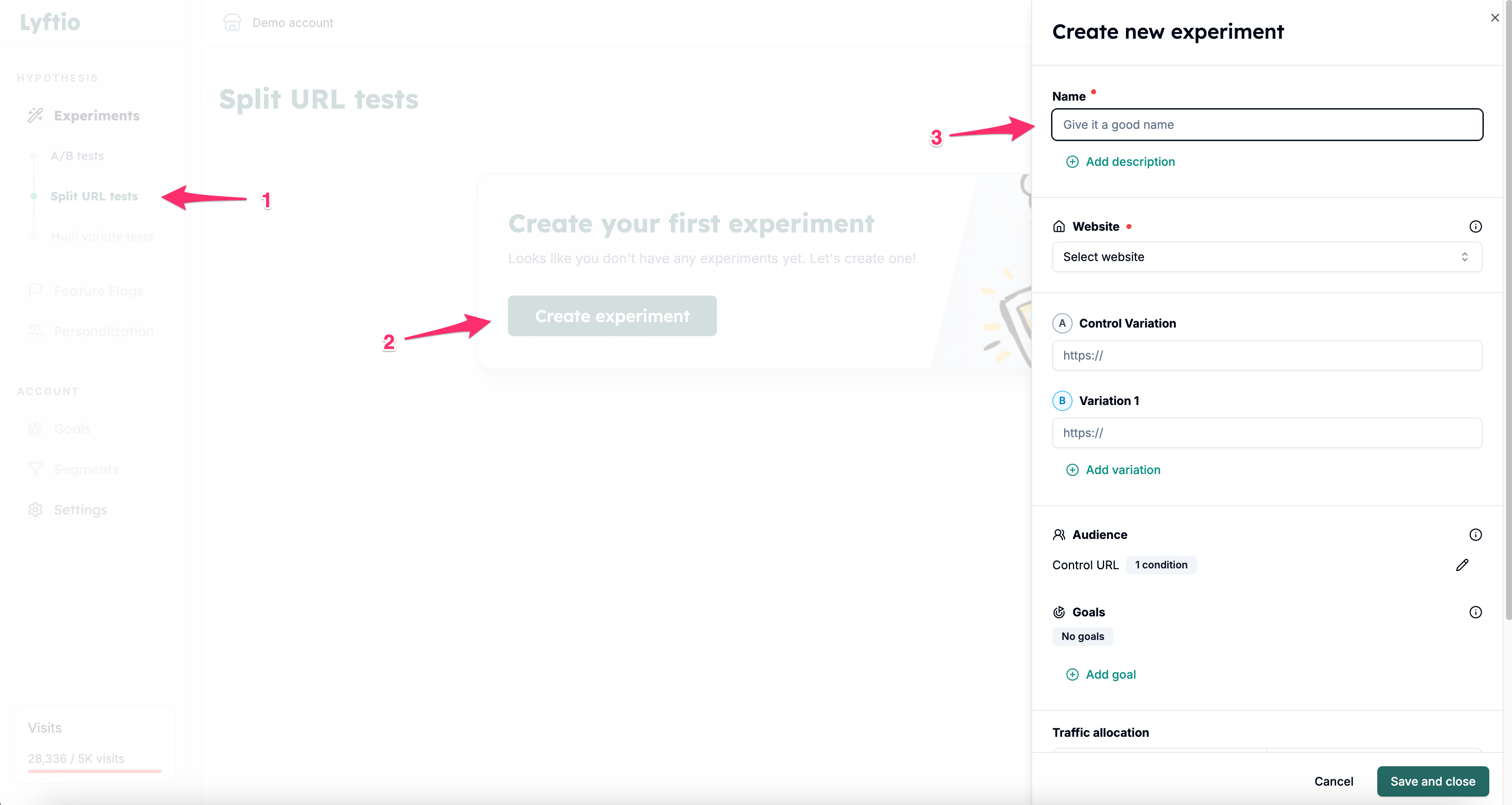
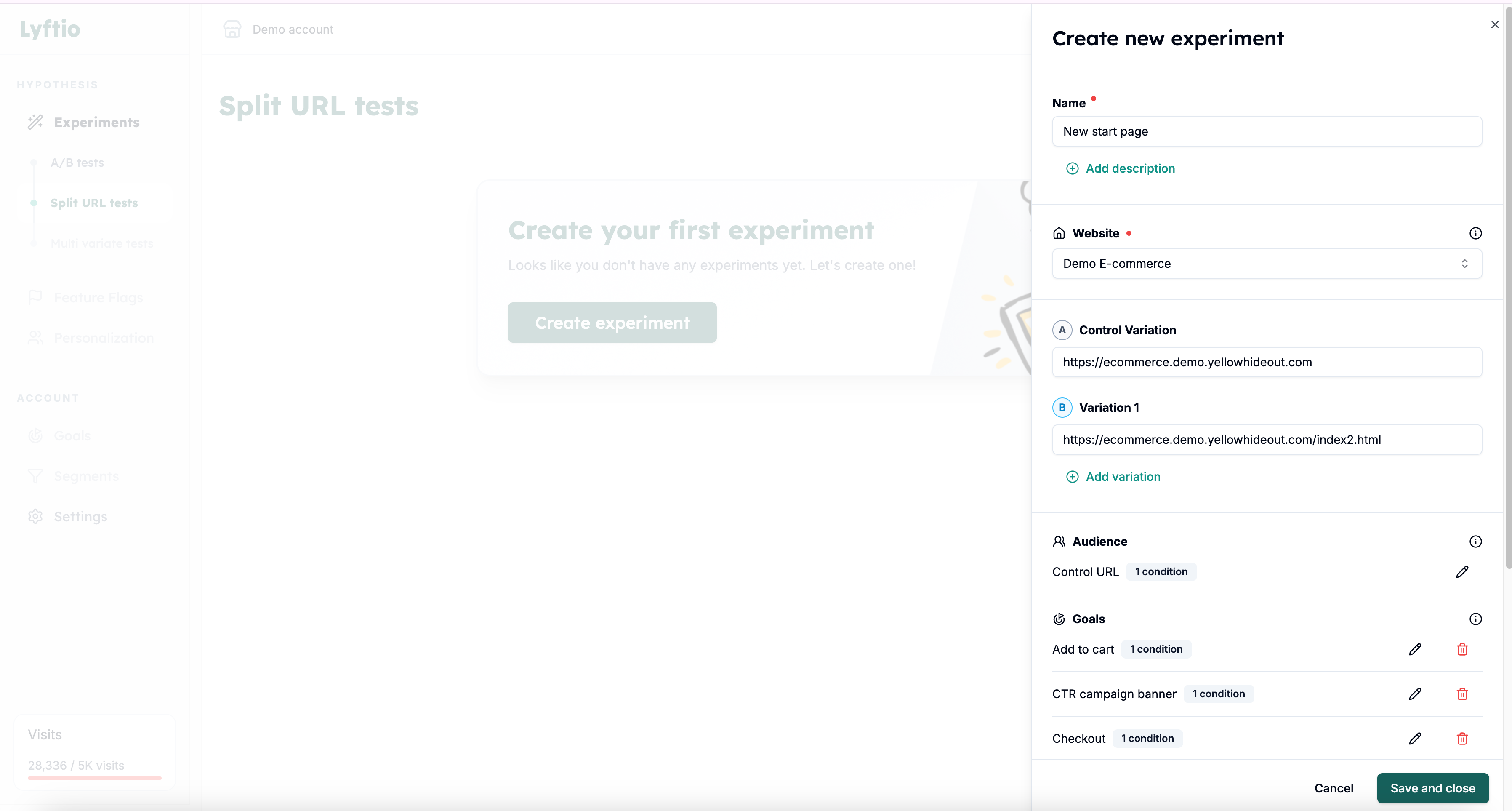
Select the project the test should be created for.
Set your Control URL by typing the URL the visitors will be redirecting from. In the example above the start page URL is entered.
Set your variation URL by typing the URL the visitors will be redirected to. In the example above the new start page URL is entered.
Add more variations (optional)
Set your Audience (optional). By default, a URL condition is applied using a Simple match to your Control URL. This setting can’t be modified, but it will automatically update if you change the Control URL.
Define your goals by adding the metrics and KPIs that will determine whether the test is successful or not.
Set the traffic allocation (optional). By default, traffic is evenly split across all variations, using 100% of the available traffic.
Click on Save and close and the test is created and ready for launch. You can activate it from the experiment listing.