Tracking in Shopify
Shopify restricts third-party scripts from running directly in checkout.
To enable conversion tracking on checkout pages, you must add a custom pixel that loads the Lyftio script.
If you also require revenue tracking, you need to implement the appropriate purchase callback within the same custom pixel configuration.
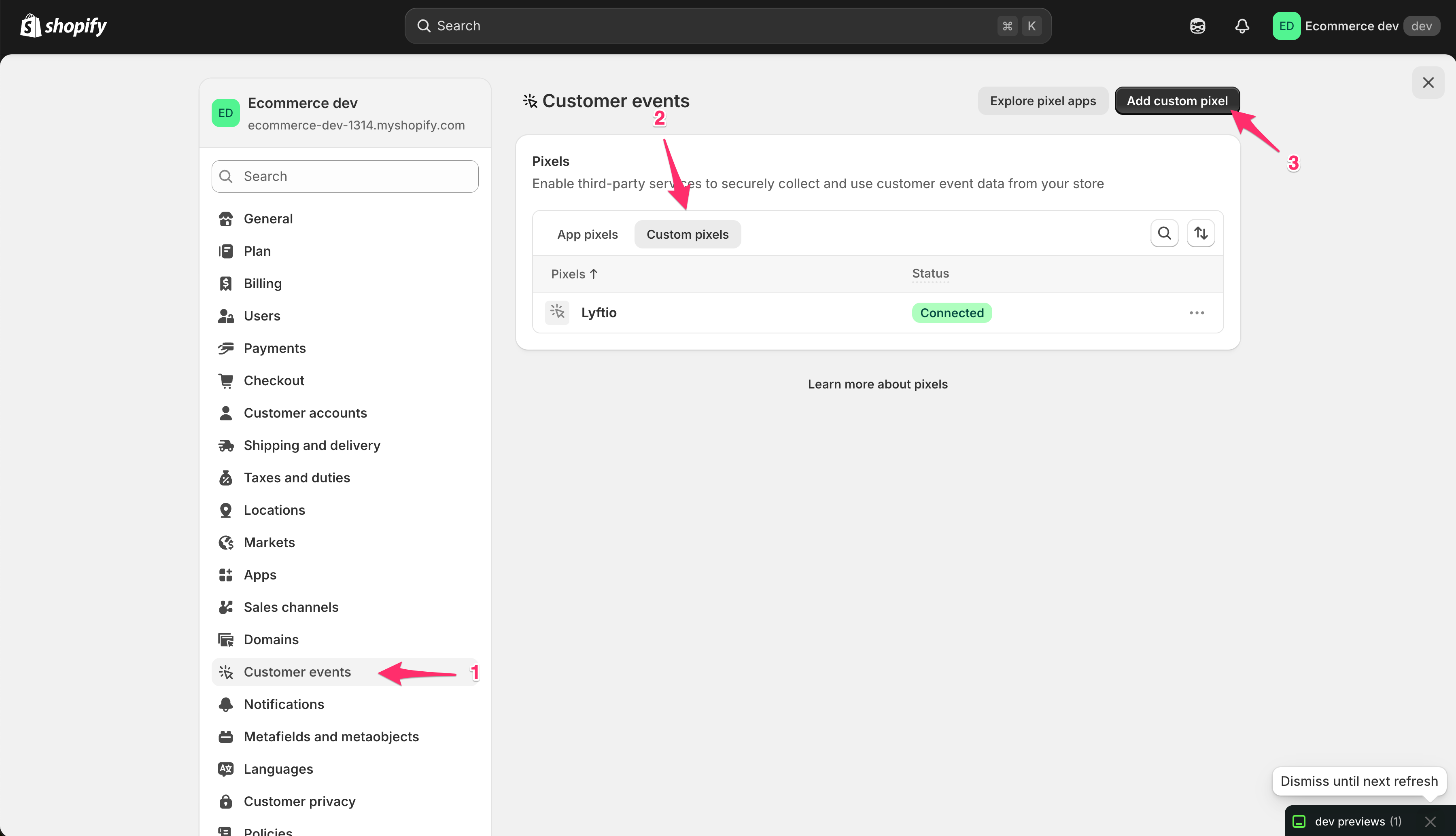 To create a custom pixel, log in to your Shopify admin and navigate to Settings.
Select Customer events, then click on the Custom pixels tab.
Click Add custom pixel, and name it “Lyftio” (or a similar identifier).
Next, copy and paste the code below to load the Lyftio script.
Script implementation
// Step 1. Initialize the JavaScript pixel SDK (make sure to exclude HTML)
if (window.location.href.indexOf("checkout") > -1) {
  const script = document.createElement("script");
  script.setAttribute("src", "https://cdn.lyftio.com/XXXXXX/dist/bundle.js"); // replace XXXXXX with your project ID
  script.setAttribute("async", "");
  document.head.appendChild(script);
}
Make sure to replace XXXXXX in the code above with your actual project ID.
To find your project ID, log in to Lyftio in a separate tab, navigate to Settings → Projects, locate your project in the list, and copy the ID displayed next to the project name.
Standard goals will function on the checkout page as long as the Lyftio script is deployed via the above Shopify Custom Pixel.
If you for example want to track users who reach the checkout, you can create a standard goal with a URL condition. that matches pages where the URL contains /checkouts/.
Revenue callback
If you also want revenue tracking you need to add the following code to your custom pixel.
// Step 2. Subscribe to customer events with analytics.subscribe(), and add tracking
//  analytics.subscribe("all_standard_events", function (event) {
//    console.log("Event data ", event?.data);
//  });
analytics.subscribe("checkout_completed", async (event) => {
  const checkout = event.data.checkout;
  let lineItems = checkout.lineItems;
  let qty = 0;
  for (let i = 0; i < lineItems.length; i++) {
    qty += lineItems[i].quantity;
  }
  const checkoutID = checkout.token.toString();
  const checkoutTotalPrice = checkout.totalPrice.amount;
  const itemQuantity = qty;

  /* Revenue tracking */
  if (window.Lyftio && Lyftio.revenue) {
    Lyftio.revenue.push({
      orderId: checkoutID,
      totalValue: checkoutTotalPrice,
      itemQty: itemQuantity
    });
  } else {
    window.addEventListener("Lyftio::Started", (e) => {
      Lyftio.revenue.push({
        orderId: checkoutID,
        totalValue: checkoutTotalPrice,
        itemQty: itemQuantity
      });
    });
  }
});
Lyftio does not handle currency conversions. The order values need to be convered into one and the same currency before the push.
If you do not have access to a currency converter you can use a static currency excange chart to make all your orders into the same currency.
The populated values needs to be of the correct data type for the revenue callback to be accepted;
- orderId: string
- totalValue: number (use dot (.) for decimals)
- itemQty: number
Connect custom pixel
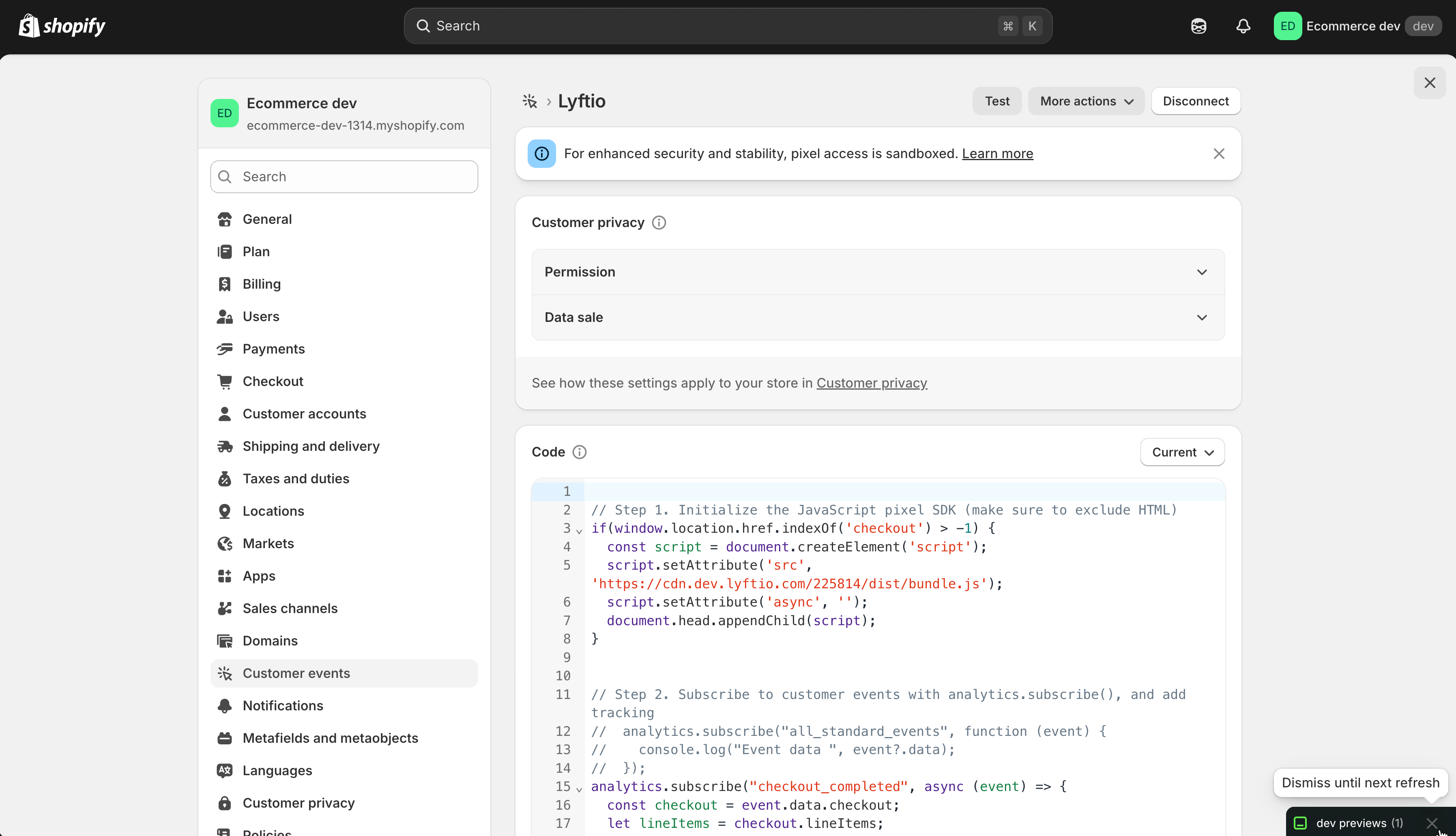 Click Save in the top bar to save your changes and then finally click Connect to connect your custom pixel to your web store.