Set a Goal
Goals are used to measure KPIs for your experiments. They show how each variation performs relative to the original version. A goal is built from conditions that a visitor must match to trigger a conversion.
Creating a Goal
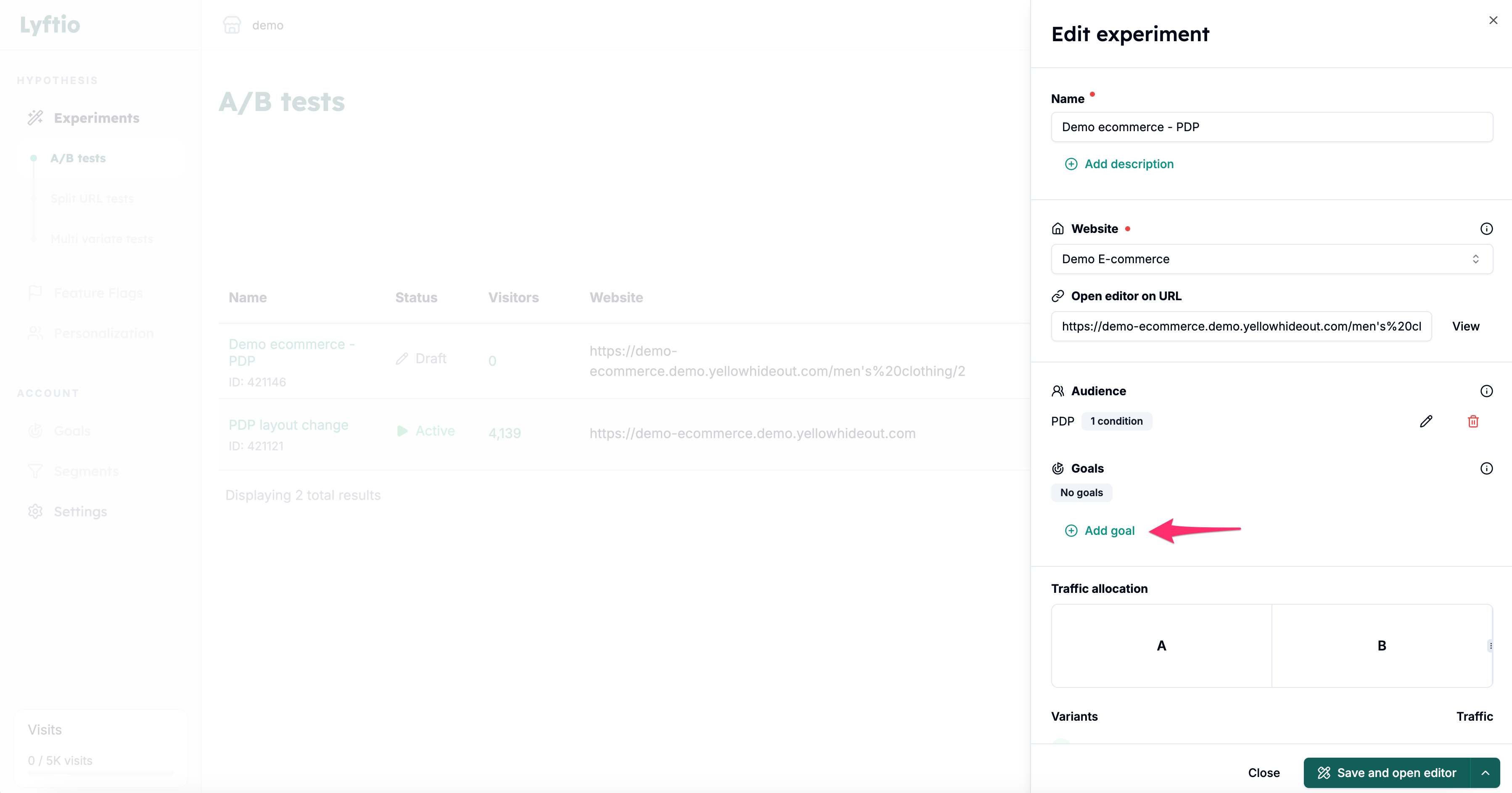 To create a Goal for your experiment, select the Add goal button.
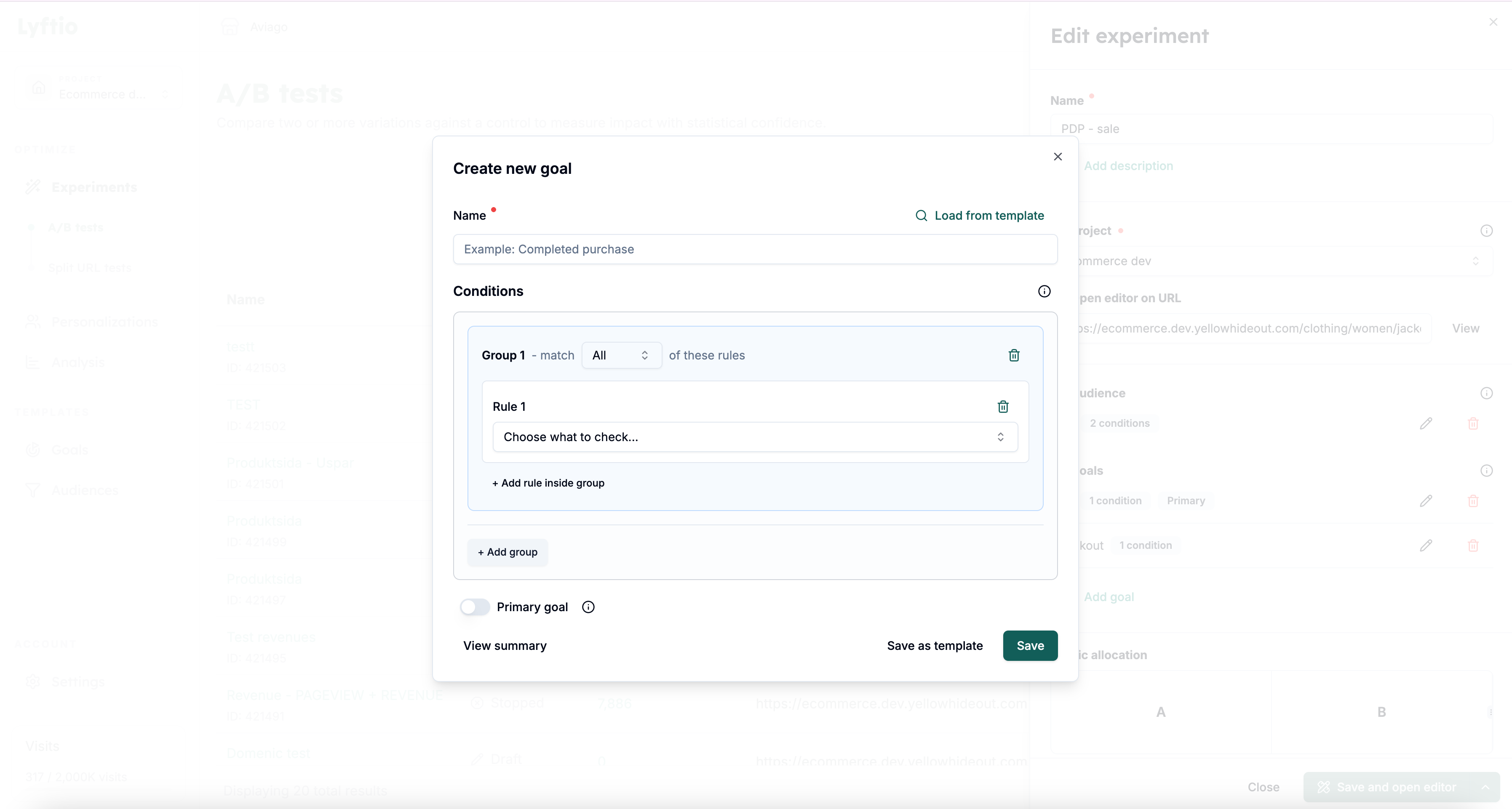 Give your Goal a name and add the conditions that visitors must match for a conversion to be registered.
Organizing conditions into groups
Every condition belongs to a group. Use the controls in the condition builder to define how rules and groups relate to each other:
- Add a condition with Add rule inside group.
- Choose All if every rule in the group must match, or Any if one or more rules may match.
- Select Add group when you need a separate set of rules.
- When there is more than one group, choose Match All groups to require every group or Match Any group to require at least one group.
Select View summary to review the complete matching logic before saving the Goal.
Use groups when you need to combine AND and OR logic. For example, put click rules for a regular and a sticky purchase button in an Any group, put the required URL rule in another group, and select Match All groups. The goal can then be triggered by either button, but only on the required page.
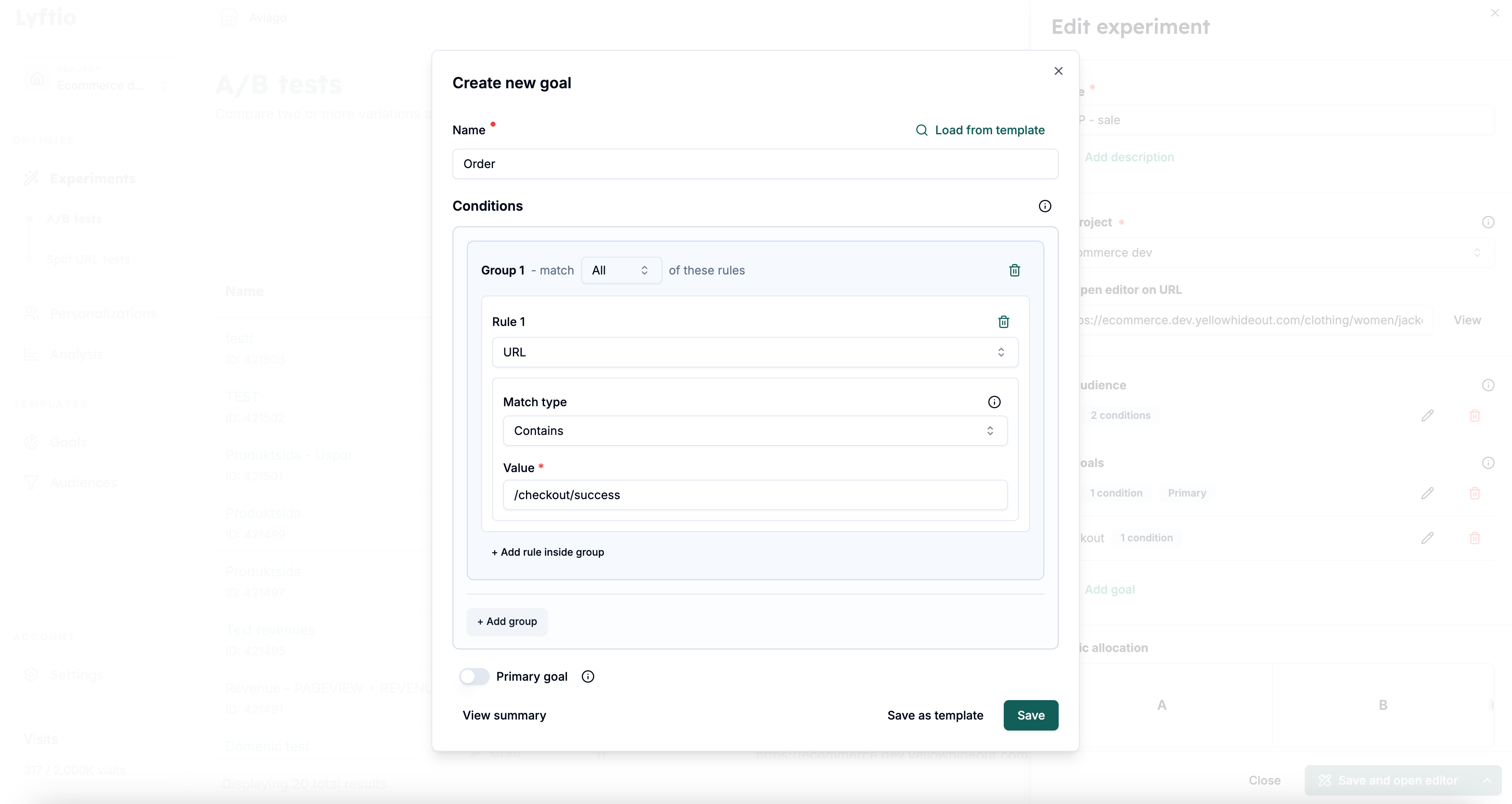 In the example above, the goal is triggered when a visitor makes an order by going to a page where the URL contains /checkout/success.
Read more about the different conditions in the next chapter, or go straight to examples to see how they can be used to measure your KPIs.