HTML element
If your URL structure does not make it easy to identify a page, you can use an HTML element condition to check whether an element exists. You can also match the element's text to distinguish between elements that share the same selector. This condition is used most often for Audiences, but it can also register a conversion when a unique element or message appears on a confirmation page.
Example
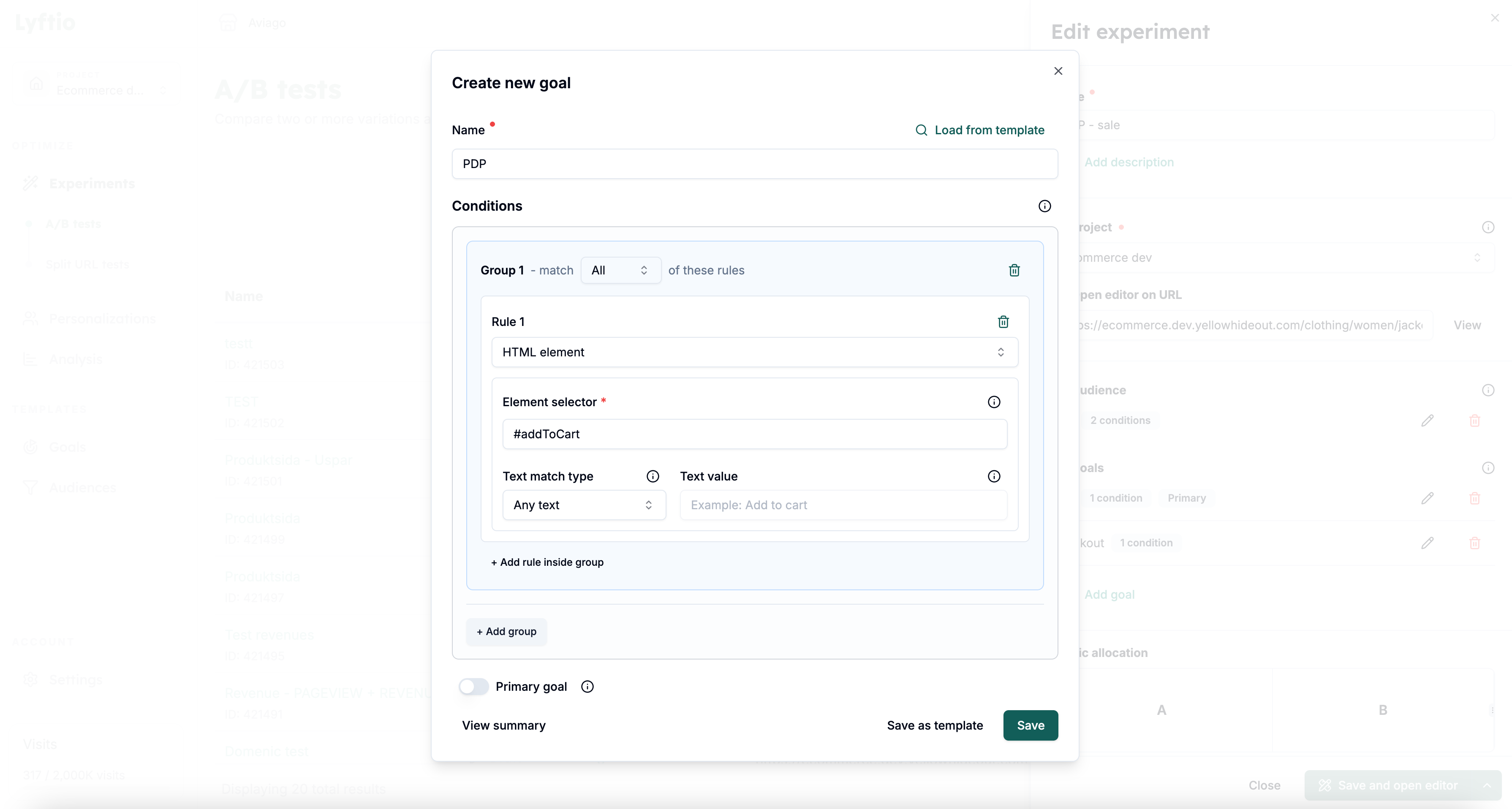 In the image above, the goal matches the Product detail page by checking for an element with the selector #addToCart (an element with the ID addToCart).
Match by element text
Use Text match type when the selector alone is not specific enough:
| Text match type | Behavior |
|---|---|
| Any text | Ignores the text and matches when any element found by the selector exists. This is the default. |
| No text | Matches when at least one selected element has no text. Whitespace by itself counts as no text. |
| Exact match | Matches when at least one selected element's complete text equals the Text value. |
| Contains | Matches when at least one selected element's text includes the Text value. |
| Regex match | Matches when at least one selected element's text satisfies the regular expression in Text value. |
Text from child elements is included, whitespace at the beginning and end is ignored, and Exact match and Contains are case-sensitive.
For example, use the selector .order-status with Exact match and the text Order confirmed to register the goal only when that confirmation message appears, even if the same selector is used for other order states.
Lyftio monitors the page for matching elements and text changes, so the condition is reevaluated when elements load dynamically, are removed, or their text changes. For Exact match, Contains, and Regex match, you must enter a Text value. An invalid regular expression does not match any element.
Always test your Goals in Preview before activating the experiment to make sure that they trigger as expected.