Invite users
Users can be invited to Lyftio in two different ways:
- Through a Group
- Directly to one or more Projects
The best approach depends on how your organization manages access and permissions.
If you have multiple projects or many users who should share the same permissions, we recommend using Groups for easier and more scalable access management.
Inviting users through Groups
Groups allow you to assign a permission level to one or more projects and then add multiple users to that group.
Available permission levels:
- Admin
- Write
- Read
All users within the group inherit the same permissions for the assigned projects.
This makes it easy to manage access consistently across teams without configuring permissions individually for every user.
When to use group invitations
Group invitations are useful when:
- Multiple users need the same permissions
- You manage teams or departments
- You want centralized permission management
Examples
Developer group
A group that gives:
- Write access
- To one or multiple projects
This allows developers to:
- Create and edit experiments
- Build variations
- Work within assigned projects
Stakeholder group
A group that gives:
- Read access
- To one or multiple projects
This allows stakeholders to:
- View experiments
- Analyze results
- Monitor performance without making changes
Invite user to group
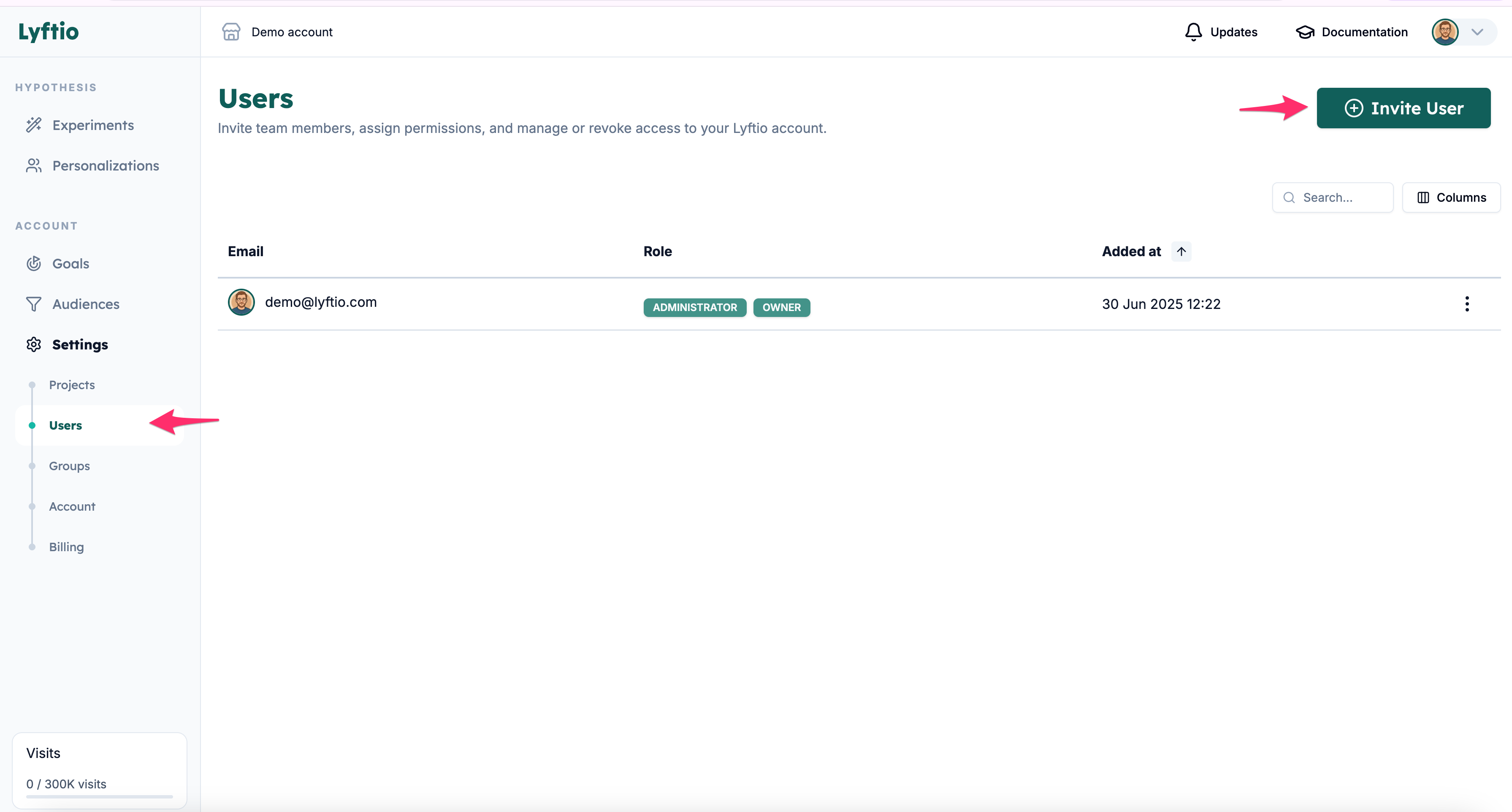
- To invite a user simply click on Settings and then Users.
- Then click on
Invite user
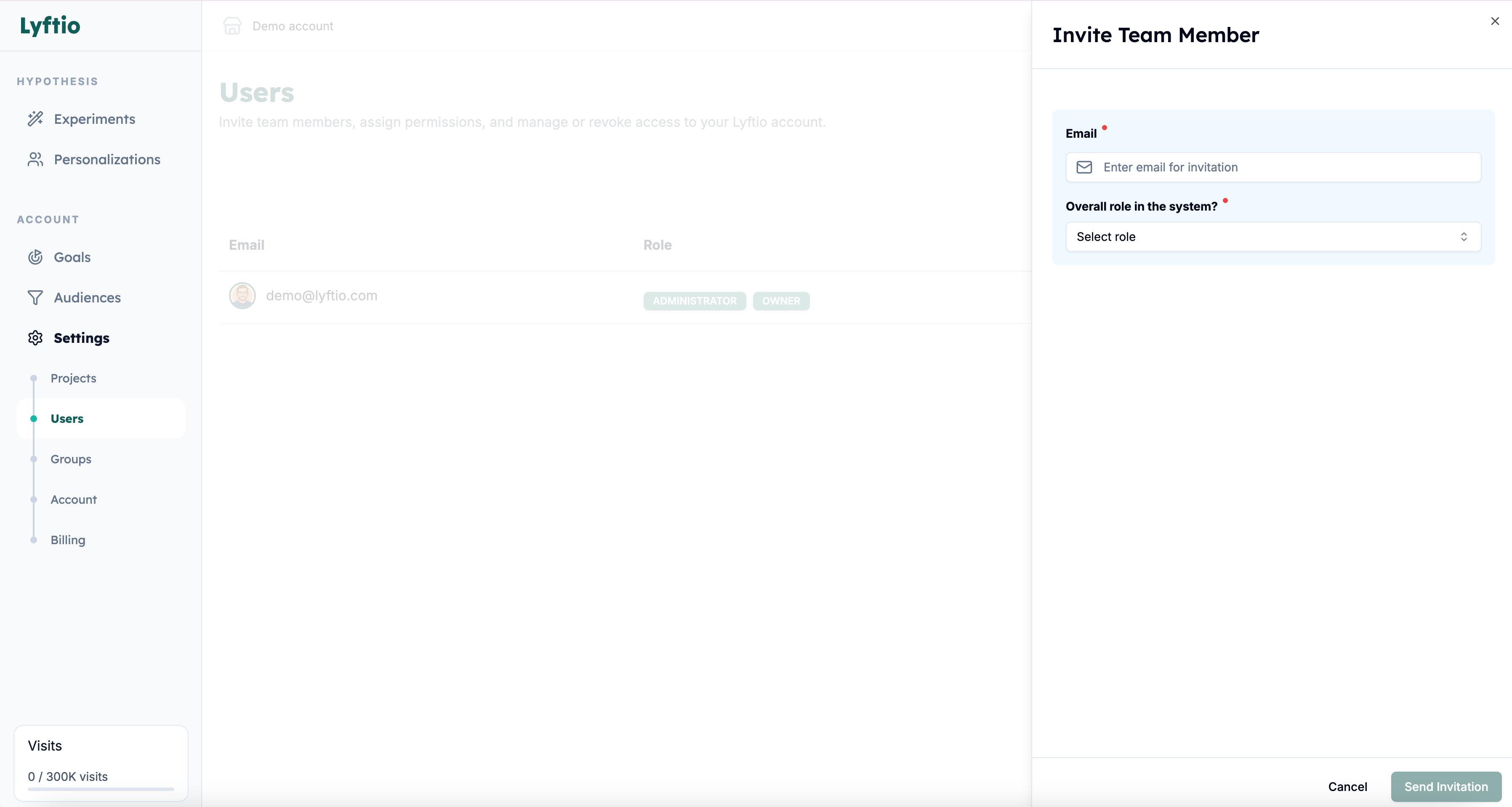
- Enter email and select role for the new user.
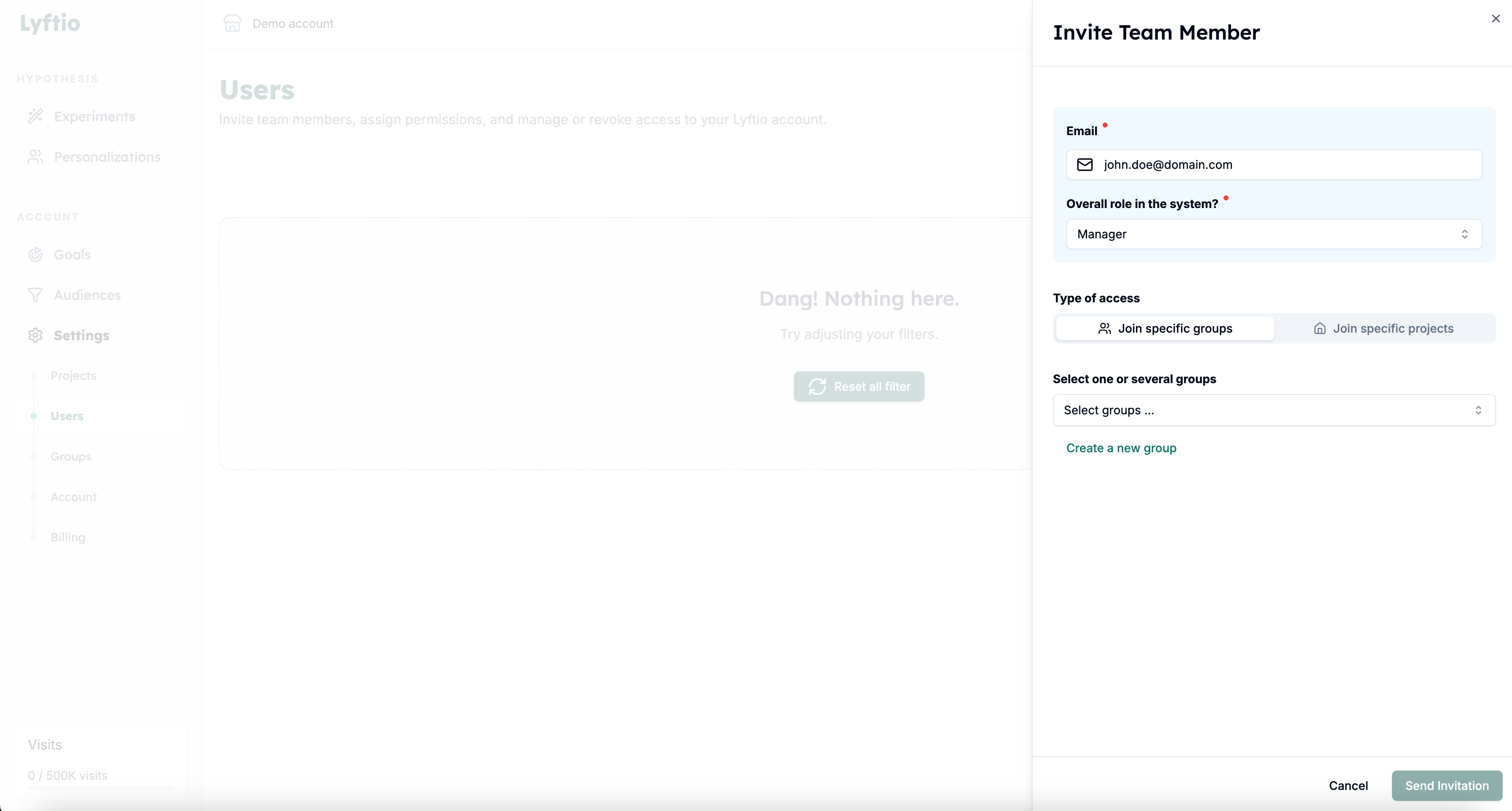
-
Select one or more groups that the user should join or create a new group.
-
Click Send invitation
Inviting users directly to Projects
If you do not want to use groups, you can invite users directly to specific projects instead.
When inviting a user directly, you:
- Select one or more projects
- Assign a permission level for each project:
- Admin
- Write
- Read
These permissions apply only to the specific invited user.
When to use direct project invitations
Direct project invitations are useful when:
- A user only needs temporary access
- Access differs from the rest of a team
- You want fine-grained project control per user
Example
You want to give an external consultant:
- Write access to Project A
- Read access to Project B
Instead of creating a dedicated group, you can assign those permissions directly to the user.
Invite user to project(s)
- To invite a user simply click on Settings and then Users.
- Then click on
Invite user
- Enter email and select role for the new user.
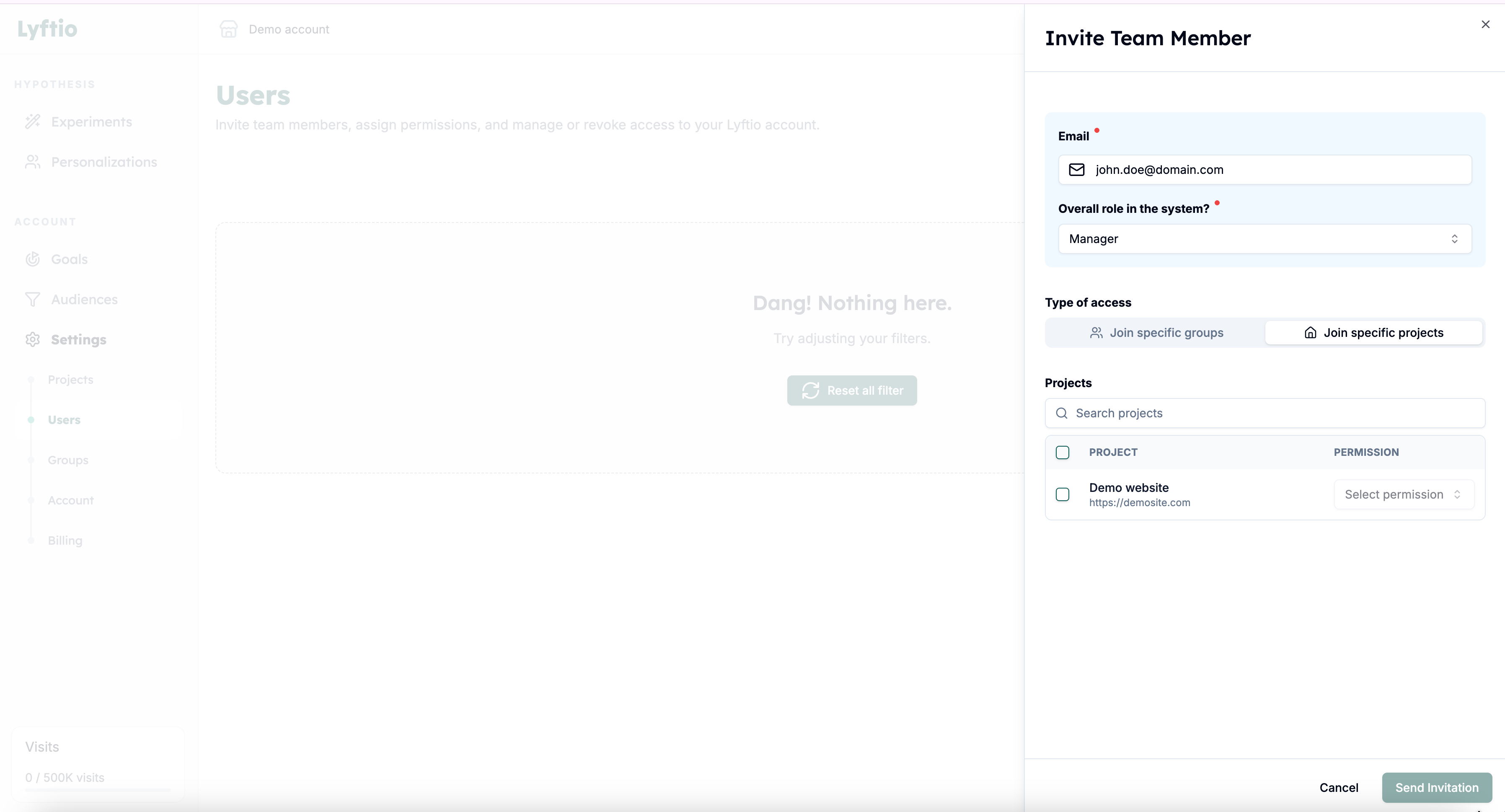
-
Select one or more projects that the user should join and set the permission for each.
-
Click Send invitation