Lyftio Editor Enabler Chrome extension
Some websites use strict security headers that prevent the Lyftio editor from loading the site inside the editor view. The Lyftio Editor Enabler Chrome extension can help you test those sites by removing the blocking headers in your own browser for the websites you approve.
Install the extension from the Chrome Web Store:
Only use the extension on websites you manage or have permission to test.
When to use the extension
Use the extension if the editor does not load because your website blocks iframes or has a strict Content Security Policy (CSP).
Common signs are:
- The editor opens, but your website does not appear
- The editor shows a blank or blocked page
- The browser console shows errors related to
Content-Security-Policy,X-Frame-Options, or frame loading
How to use the extension
1. Install the extension
- Open the Lyftio Editor Enabler Chrome Web Store page.
- Click Add to Chrome.
- Confirm the installation in Chrome.
- Pin the extension to your Chrome toolbar if you want quick access.
2. Open the website you want to edit
Open the website where you want to use the Lyftio editor.
Make sure you are on the same domain that will load inside the editor. For example, if you want to edit https://www.example.com, open that website in Chrome first.
3. Add the website to the extension
- Click the Lyftio Editor Enabler icon in the Chrome toolbar.
- Click Add current site.
- Chrome may ask you to allow the extension to access the website.
- Approve the access request.
- Make sure the extension toggle is enabled.
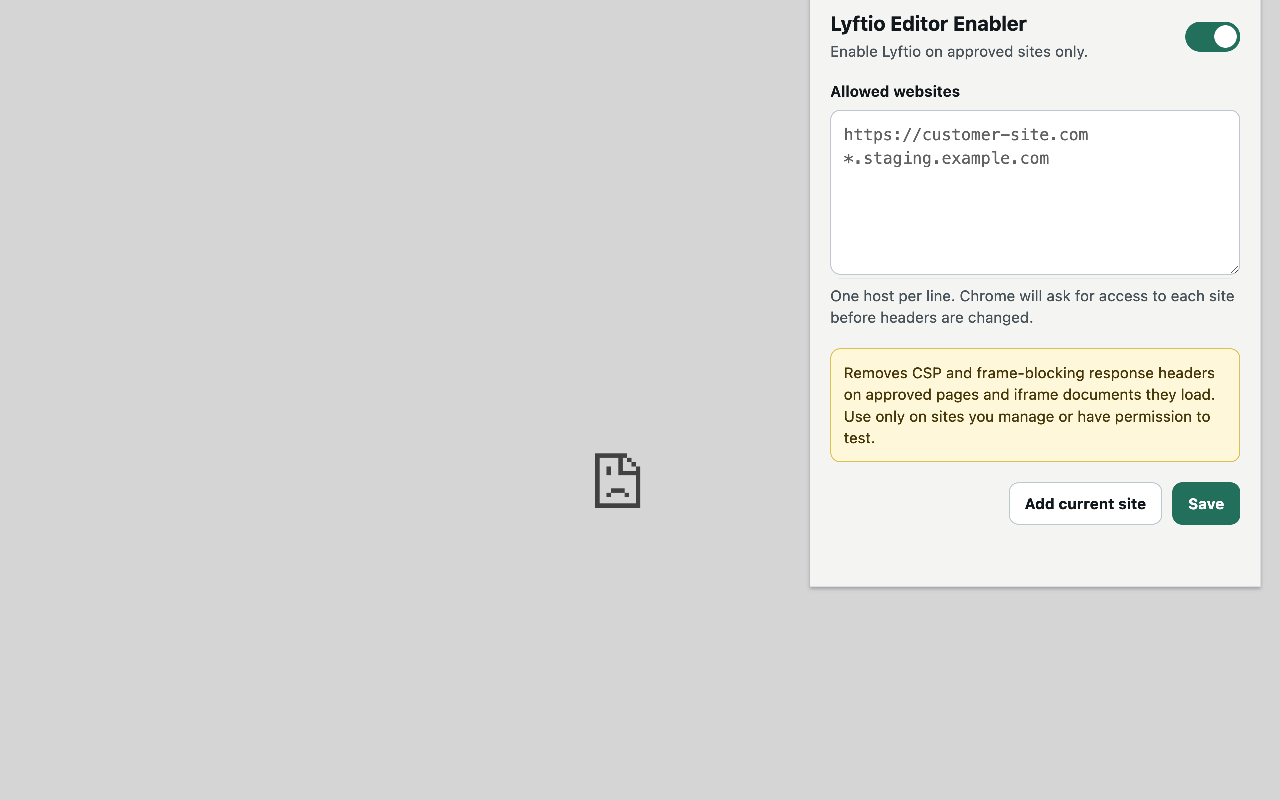
The website should now appear in the Allowed websites field.
You can also type websites manually, one per line:
example.com
www.example.com
staging.example.com
4. Save the settings
Click Save after adding or editing allowed websites.
When the extension is enabled, the popup will show that rules are enabled.
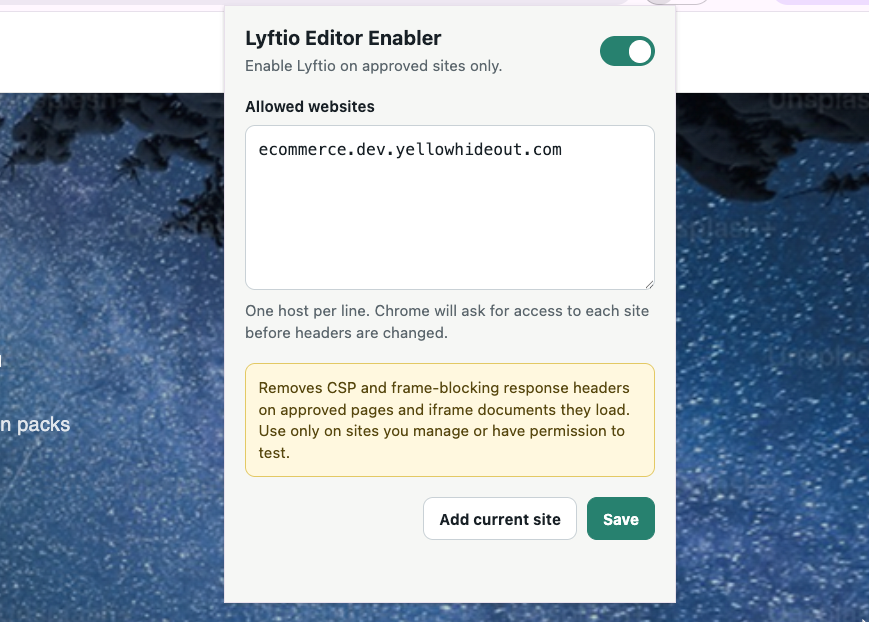
5. Open the Lyftio editor again
Return to Lyftio and open the editor for your experiment again.
If the editor was already open, close it and reopen it. You can also refresh the editor page.
Your website should now load inside the Lyftio editor.
Turning the extension off
When you are done editing, you can disable the extension rules:
- Click the Lyftio Editor Enabler icon.
- Turn off the toggle.
- Click Save.
You can turn it back on later without adding the website again.
Troubleshooting
The website still does not load
Try the following:
- Confirm the website is listed in Allowed websites
- Confirm the extension toggle is enabled
- Click Save again
- Close and reopen the Lyftio editor
- Reload the website and the editor
- Make sure you approved Chrome's site access request
The wrong domain was added
Remove the wrong domain from Allowed websites, add the correct one, and click Save.
For example, example.com and staging.example.com may need to be added separately depending on where you are testing.
Chrome does not ask for site access
If Chrome does not show the access prompt, open the extension popup, check that the website is listed correctly, and click Save again.
You can also open Chrome's extension settings and confirm that the extension has access to the website.
What the extension changes
The extension only changes requests in your own browser for websites you approve. It removes response headers that can block the editor from loading the website, including CSP and frame-blocking headers.
It does not change your live website, your visitors' browsers, or your Lyftio project settings.