Select and edit multiple elements
· One min read
You can now select multiple elements in the Visual Editor by holding Shift while clicking them. Apply the same change to several elements at once instead of editing each one separately.
Visual editor updates, styling, DOM manipulation, and editing workflows.
View All TagsYou can now select multiple elements in the Visual Editor by holding Shift while clicking them. Apply the same change to several elements at once instead of editing each one separately.
You can now turn an element selected in the Visual Editor into a click Goal. The shortcut creates the click condition and selector for you, making it quicker to track actions such as add-to-cart clicks, signups, and navigation interactions.
You can now add an element selected in the Visual Editor directly to an experiment's Audience. Lyftio creates an HTML element condition from the selection, so you can target visitors based on whether that element exists without manually building its selector.
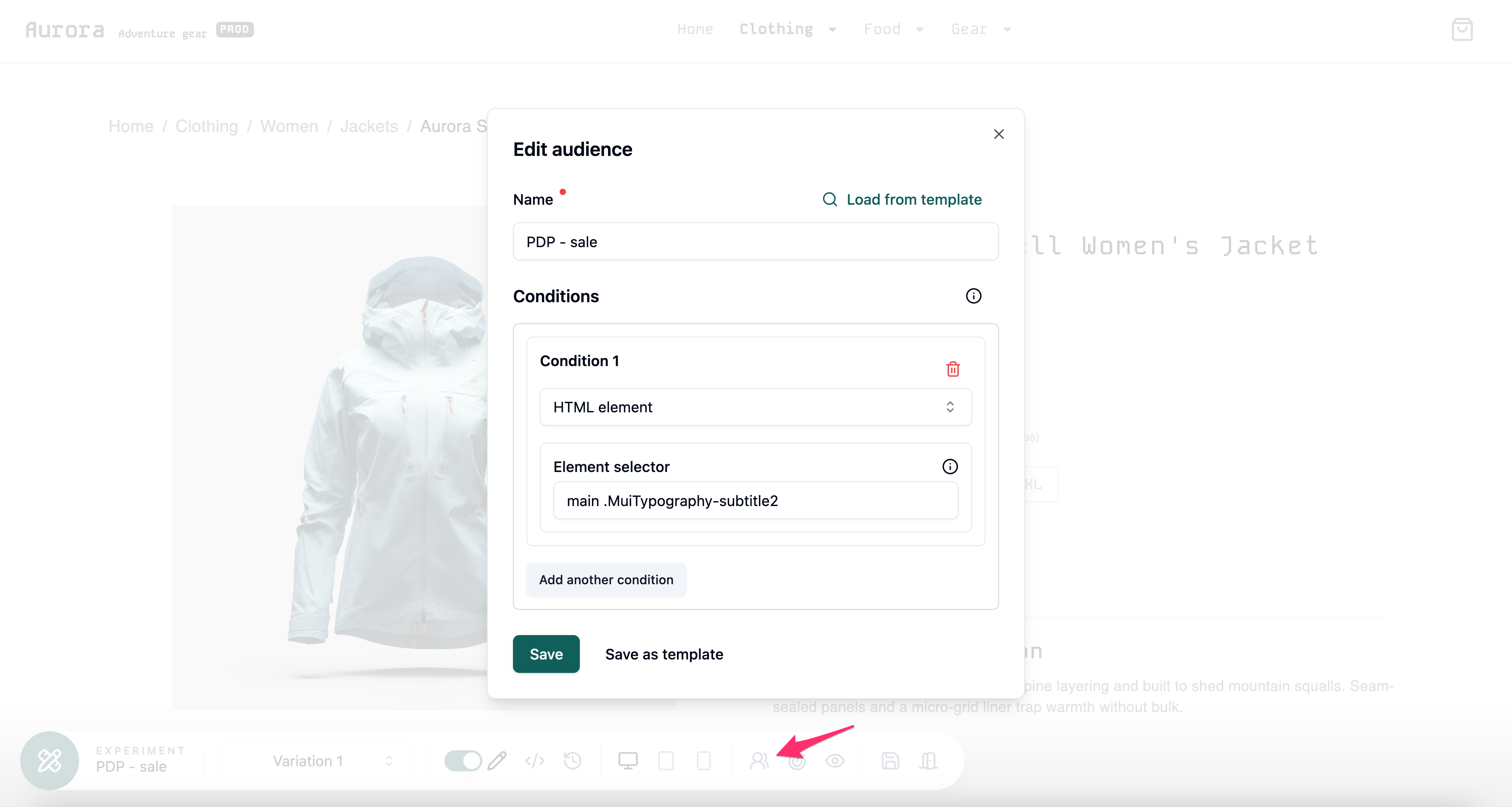
The editor now lets you update Audiences directly while working on an experiment.
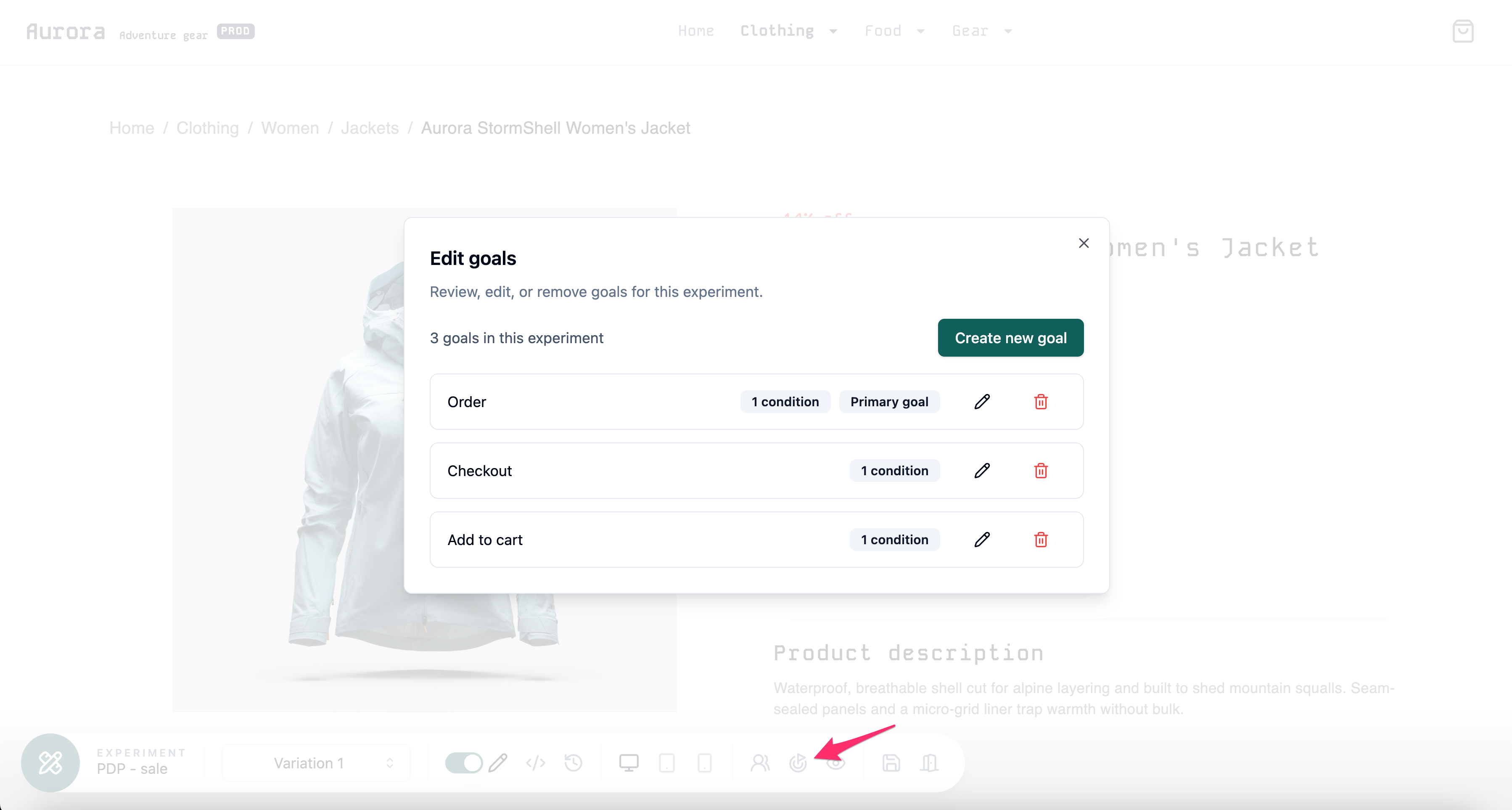
The editor now lets you update Goals directly while working on an experiment.
For users who spend a lot of time in the editor, small workflow improvements can make a big difference. To help speed things up, we’ve added keyboard shortcuts (hotkeys) for some of the most common editor actions.
These shortcuts allow you to quickly switch modes, navigate views, and save changes without leaving the keyboard.
We’re excited to introduce a new AI-powered feature that allows you to prompt changes to elements directly in the Visual Editor.
We’re excited to introduce the Undo Style Change feature in the editor, designed to give you more control and confidence when modifying element styles in your experiments.
Now, you can quickly see what has been changed on any element and revert individual style changes without affecting other edits.
We’ve added a new Insert operation to the Visual Editor, giving you an easy way to inject custom HTML directly relative to elements on the page.
With this feature, you can insert HTML before, after, inside the beginning, or inside the end of any selected element — all without writing custom DOM-handling logic.
We’ve added a new option to the Visual Editor that allows you to make device-specific changes when building variations.